SMS verification codes: how you opt in
Program: DriveIt Verification Codes · Sender: Drive It LLC (driveit.ai)
DriveIt is a car-rental booking platform. The only text messages we send are one-time verification codes (OTP) that you request yourself to confirm your mobile number when you sign in, create an account or add a number to your profile. We never send marketing or promotional texts, and nobody is ever added to this program without ticking the consent box described below.
- Brand: DriveIt (Drive It LLC)
- Message type: one-time verification codes (2FA / OTP) only
- Frequency: varies; one message per code you request (typically one to two per sign-in)
- Cost: message and data rates may apply
- Opt out: reply STOP to any message · Help: reply HELP or email [email protected]
- Privacy: mobile numbers and SMS consent are never sold or shared with third parties for marketing. See the Privacy Policy and SMS Terms.
The consent checkbox
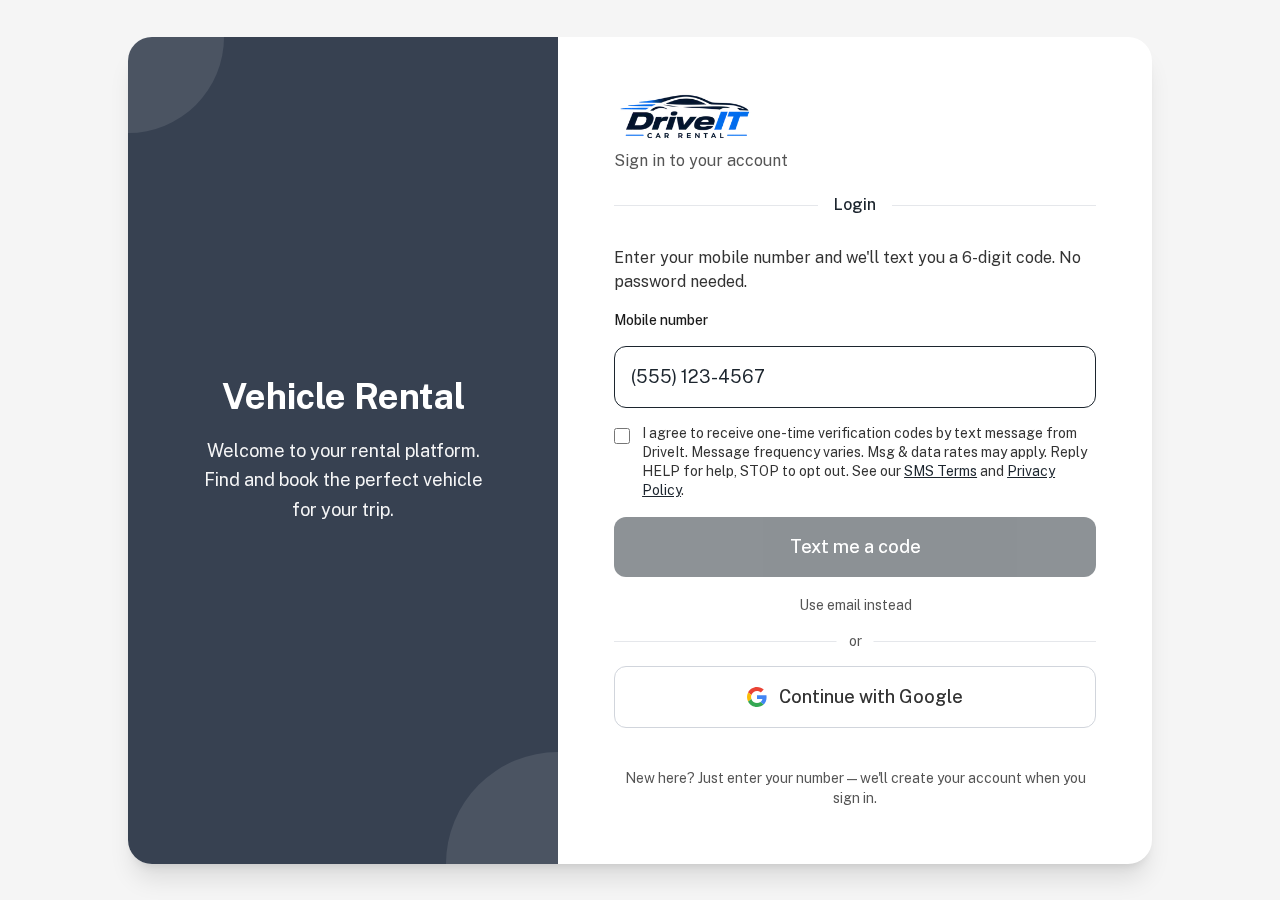
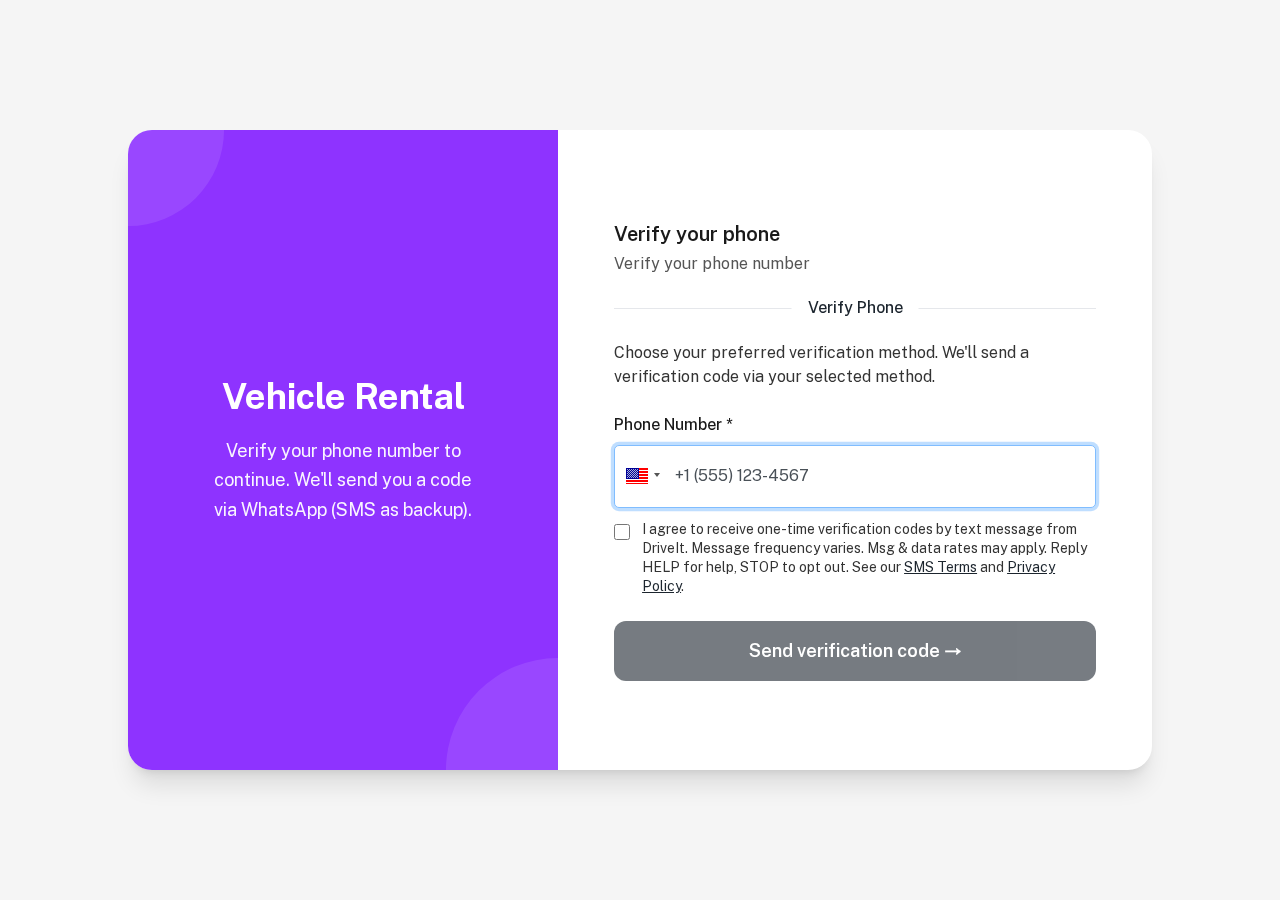
Every DriveIt form that can lead to a text message shows this checkbox directly under the phone field. It is unchecked by default; the button that requests a code stays disabled until it is ticked, and the server refuses to send a code without it. The wording is:
Shown above for illustration only. The working forms are linked in the next section.
Where you opt in
1. Sign in with your mobile number (public, no account needed)
Anyone can open https://driveit.ai/login?method=phone, type a mobile number, tick the consent box and press Text me a code. A 6-digit code is texted, the person enters it, and a new visitor is asked for an email address to finish creating the account.
2. Verify your phone after signing up with email or Google
People who create an account with an email code or Google are asked to confirm a mobile number at https://driveit.ai/auth/verify-phone. Same checkbox, same rule: no code is sent until it is ticked.
3. Add or change a phone number in your profile (signed in)
From Profile → Add phone number (https://driveit.ai/user/profile, requires signing in) a dialog asks for the number and shows the same consent checkbox. Send code is disabled until it is ticked.
This dialog sits behind the account login; it uses the identical checkbox and wording shown in the two screenshots above.
What the messages look like
- DriveIt: your sign-in code is 482915. It expires in 10 minutes. Don't share it with anyone. Reply STOP to opt out.
- Your DriveIt verification code is: 739104. Valid for 10 minutes. Reply STOP to opt out.
Keywords
| You text | What happens |
|---|---|
| STOP (also STOPALL, UNSUBSCRIBE, CANCEL, END, QUIT) | You are unsubscribed and get one confirmation: “DriveIt: You are unsubscribed and will receive no more messages. Reply START to resubscribe. Help: [email protected]” |
| HELP (also INFO) | “DriveIt Verification Codes: one-time codes you request when signing in. Msg frequency varies. Msg & data rates may apply. Reply STOP to opt out. Help: [email protected]” |
| START (also UNSTOP) | You are opted back in and can request codes again. |
Questions
Email [email protected]. Full terms: https://driveit.ai/terms#sms · Privacy: https://driveit.ai/privacy